
RemoveTexts vs Shrinkpad
Side-by-side comparison to help you choose the right AI tool.

RemoveTexts
RemoveTexts lets you zap text, watermarks, and clutter from images in seconds, no fancy software or skills needed—just paint and go!.
Last updated: March 11, 2026

Shrinkpad
Shrinkpad crushes your bloated media files in bulk, saving you space and time like a boss.
Last updated: February 28, 2026
Visual Comparison
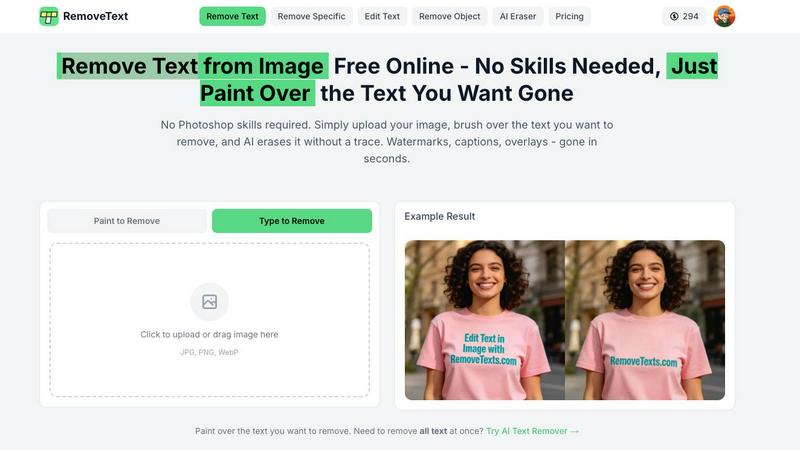
RemoveTexts
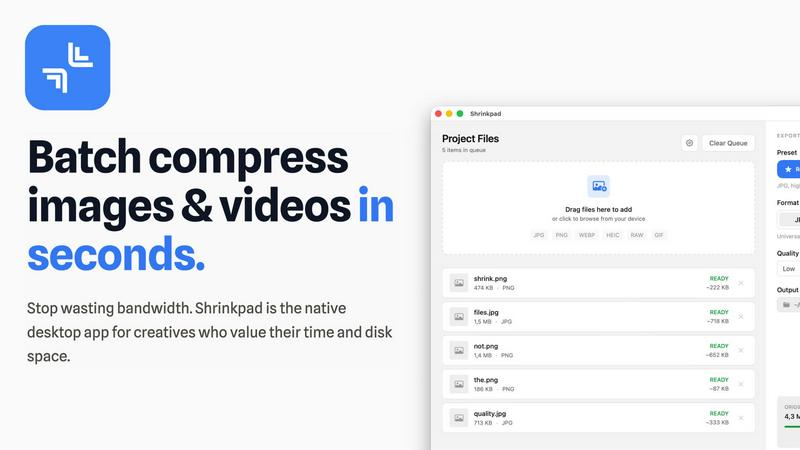
Shrinkpad
Feature Comparison
RemoveTexts
Paint to Remove
With the Paint to Remove feature, you have total control over what gets erased. Simply brush over the specific text areas you want to disappear, and our AI does the rest. It's like having a magic paintbrush that only targets unwanted text, leaving everything else intact!
Auto Remove All
If you're feeling lazy (and who isn't?), just hit the Auto Remove All button. The AI automatically detects every text element in your image and removes it with a single click. It's fast, efficient, and saves you from the hassle of manual selections.
Edit & Replace Text
Need to change some text in your image but want to keep the vibe? The Edit & Replace Text feature lets you swap out existing text while perfectly matching the original style. It's like giving your image a fresh new look without losing its essence.
Remove Objects
Want to get rid of distractions like logos, people, or other visual clutter? The Remove Objects feature lets you erase unwanted elements with ease. Just paint over the area, and watch as it disappears, making your image cleaner and more professional.
Shrinkpad
Folder Mode & Smart Detection
Stop dragging files one by one like it's 2005. Just drag your entire messy project folder onto Shrinkpad and watch the magic happen. It instantly auto-detects over 50 different image and video formats—from standard JPGs and PNGs to pro stuff like RAW files and HEIC—and adds them to your batch list. It smartly ignores documents and other non-media files, so you don't have to clean up your folder first. It's the ultimate "I don't have time for this" feature.
Insane Batch Processing
This is where Shrinkpad flexes. We're talking about processing thousands of images and videos in one go without your Mac breaking a sweat or crashing. Unlike flimsy web tools that give up after 20 files, Shrinkpad handles massive queues with ease using multi-threaded compression. You can mix photos and videos in the same batch, and it automatically applies the perfect settings for each file type. Set it up, hit compress, and go grab a coffee.
Auto-Quality & Format Support
Shrinkpad stops the guessing game. It automatically analyzes the visual complexity of each image to apply the perfect compression ratio, aiming for that sweet spot where file size plummets but quality stays looking crisp. No more fiddling with sliders! It also supports a ton of modern formats out of the box, including WEBP, AVIF, MP4, and MOV, so you can compress everything in your arsenal without needing five different apps.
Privacy-First, Local Processing
Your files are your business. Shrinkpad keeps it that way. Every single bit of compression happens right on your Mac using native macOS frameworks. Nothing ever gets uploaded to a cloud server somewhere. This is huge for photographers, designers, or anyone working with client work or sensitive assets. You get speed, security, and peace of mind, all while saving your precious bandwidth.
Use Cases
RemoveTexts
Cleaning Screenshots
Got a messy screenshot filled with unnecessary text? RemoveTexts is perfect for cleaning it up. Just upload, paint over the text, and bam! You have a sleek, professional-looking image ready to share or present.
E-Commerce Product Photos
E-commerce sellers can benefit big time from RemoveTexts. Remove distracting watermarks or text from product images to make them more appealing to potential buyers, boosting your sales without breaking a sweat.
Educational Materials
Teachers and educators can use RemoveTexts to create clean visuals for presentations or handouts. Whether it's removing subtitles from educational videos or cleaning up images, this tool makes it easy to present information without distractions.
Social Media Creators
For social media marketers and influencers, RemoveTexts is a game-changer. Easily remove unwanted text from images before posting, ensuring your visuals are eye-catching and professional. Stand out in a crowded feed with polished content.
Shrinkpad
The Web Developer's Speed Boost
Trying to get a 90+ score on PageSpeed Insights but your hero images and videos are dragging your site down? Shrinkpad is your secret weapon. Batch compress all your website assets to slash load times and improve those Core Web Vitals (like LCP). It strips metadata and outputs web-friendly formats, so you can deploy a faster site without manually optimizing hundreds of files.
The Content Creator's Storage Savior
If you edit videos or take tons of photos, your storage disappears faster than snacks at a party. Use Shrinkpad to compress your 4K B-roll, final edits, and photo dumps by up to 90% before archiving or sharing. Free up gigabytes of space on your drive or external SSD without losing the visual quality you need for social media or client previews.
The App Developer's Bundle Slimmer
Mobile app bundle size is critical. Every megabyte counts for downloads and updates. Export your app icons and UI assets at 2x/4x resolution from Figma or Sketch, then let Shrinkpad batch optimize and rename them all. Dramatically reduce your final IPA or APK file size, leading to faster downloads and happier users.
The Everyday Mac User's Clean-Up Crew
Your "Downloads" folder is a war zone, and your iPhone photos are syncing full-resolution HEIC files to your Mac. Get your storage under control! Drag your Pictures or Downloads folder into Shrinkpad, compress everything in one click, and reclaim enough space for your next big game or software update. It's digital decluttering made stupidly simple.
Overview
About RemoveTexts
RemoveTexts is your go-to AI-powered image editing tool that makes removing unwanted text from images a total breeze. Forget fumbling around with Photoshop or wasting time on manual edits; with RemoveTexts, you can simply upload your image and let the magic happen in seconds. Whether you're dealing with pesky watermarks on product photos, annoying meme text, or even those distracting date stamps, this tool has got your back. It's perfect for creators, marketers, and anyone who needs clean visuals without the hassle. The best part? You don't need any design skills to get pro-level results. With advanced AI technologies, RemoveTexts not only obliterates text but also reconstructs the background seamlessly, making it look like the text was never there. Join the community of over 100,000 users who trust RemoveTexts to keep their images looking sharp and professional.
About Shrinkpad
Alright, let's cut through the noise. Shrinkpad is that one Mac app you didn't know you desperately needed until your storage bar turns red and your project folders are basically digital hoarding. It's your personal media wizard that takes your chonky, oversized photos and videos and shrinks them down to a reasonable size without making them look like they were uploaded to the internet in 1999. Think of it as a compression sidekick for anyone who's ever cursed at a "Disk Full" alert. Built exclusively for macOS, it uses the native power of your Mac (yes, even those slick Apple Silicon chips) to crush file sizes locally. That means your files never leave your computer—no sketchy cloud uploads, no waiting, just pure, private processing power. Whether you're a designer drowning in 4K footage, a developer trying to slim down an app bundle, or just someone whose iPhone photos are slowly consuming their MacBook, Shrinkpad is the "set it and forget it" solution to get your digital life back on track.
Frequently Asked Questions
RemoveTexts FAQ
How does RemoveTexts work?
RemoveTexts uses deep learning inpainting technology to analyze the surrounding pixels of the text you want to remove. The AI intelligently reconstructs the background, making it look like the text was never there.
What file formats does RemoveTexts support?
You can upload images in JPG, PNG, or WebP formats. Just make sure your image is under 10MB, and you're good to go!
Is there a limit to how many images I can process?
There is no specific limit to the number of images you can process with RemoveTexts. However, keep in mind that the AI might need a moment to work its magic on larger batches.
Can I use RemoveTexts for commercial purposes?
Absolutely! Many e-commerce sellers and marketers use RemoveTexts to create professional images for their products and campaigns. Just be sure to check any specific usage rights for your images.
Shrinkpad FAQ
Can I use Shrinkpad for free?
Totally! The Free Starter plan lets you get a feel for the app with standard compression for up to 10 files per batch, covering common formats like JPG and PNG. It's perfect for trying it out or handling small, occasional jobs. If you need to crush unlimited files, videos, or use pro formats, you'll want to upgrade to a paid plan.
Does Shrinkpad support video compression?
Yes, and it's awesome! Shrinkpad isn't just for photos. It handles videos like a champ, supporting major formats like MP4 and MOV. You can mix videos and images in the same batch, and it will apply optimized compression to each, often reducing video file sizes by 65% or more while keeping them looking great.
Are my files uploaded to the cloud?
Nope, never, not even a little bit. Shrinkpad is built on a privacy-first principle. All the compression magic happens locally on your Mac. Your files stay on your device the entire time. This means it's super fast (no waiting for uploads/downloads) and 100% secure for your sensitive or client work.
How many files can I process at once?
With the paid Personal or Team plans, you can go nuts—process thousands of files in a single batch. The app is built for heavy-duty, unlimited batching and handles massive queues without crashing. The free version has a limit of 10 files per batch, which is cool for testing but you'll hit that limit fast if you're doing real work.
Alternatives
RemoveTexts Alternatives
RemoveTexts is an AI-powered tool that specializes in removing unwanted text from images, like a boss. Whether you're looking to ditch those pesky watermarks, clean up your screenshots, or just want to make that meme pop without the clutter, RemoveTexts has got your back. It's all about speed and ease; no Photoshop skills required, just upload your image and let the AI work its magic. However, not everyone's vibe fits with RemoveTexts. Users often seek alternatives for reasons like pricing, specific features, or platform compatibility. When hunting for an alternative, consider what you really need—whether it's advanced editing options, support for different languages, or even if you want a mobile-friendly app. Finding the right tool can make all the difference in achieving those killer visuals.
Shrinkpad Alternatives
So you've heard about Shrinkpad, the Mac app that's basically a digital Marie Kondo for your photos and videos, helping you batch compress media files to save a ton of space. It's a lifesaver for creatives and regular folks drowning in massive image and video files. But hey, maybe you're on the hunt for something else—maybe the price tag isn't your vibe, you need Windows or Linux support, or you're just curious what else is out there in the optimization universe. When you're scrolling through options, you gotta know what's important to you. Think about whether you need cloud processing or if you're a privacy hawk who wants everything done locally on your machine. Check if it handles all your weird file formats and if the compression is actually smart, not just making your pics look like pixelated potato quality. Your perfect match depends on your specific storage drama and workflow needs. --- FAQ_SEPARATOR--- [
{"question": "What is Shrinkpad?", "answer": "Shrinkpad is a batch compression tool for Mac that lets you quickly reduce the file size of images and videos directly on your computer, saving storage space."},
{"question": "Who is Shrinkpad for?", "answer": "It's perfect for photographers, designers, or any Mac user tired of huge media files slowing down their device and hogging storage."},
{"question": "Is Shrinkpad free?", "answer": "The provided content doesn't specify pricing, so you would need to check the official Shrinkpad website or the Mac App Store for current cost details."},
{"question": "Why choose Shrinkpad?", "answer": "It processes files locally for security, supports over 50 formats, and can reduce sizes by up to 90% without a noticeable loss in quality."}
]