
RemoveTexts vs TinyFast
Side-by-side comparison to help you choose the right AI tool.

RemoveTexts
RemoveTexts lets you zap text, watermarks, and clutter from images in seconds, no fancy software or skills needed—just paint and go!.
Last updated: March 11, 2026

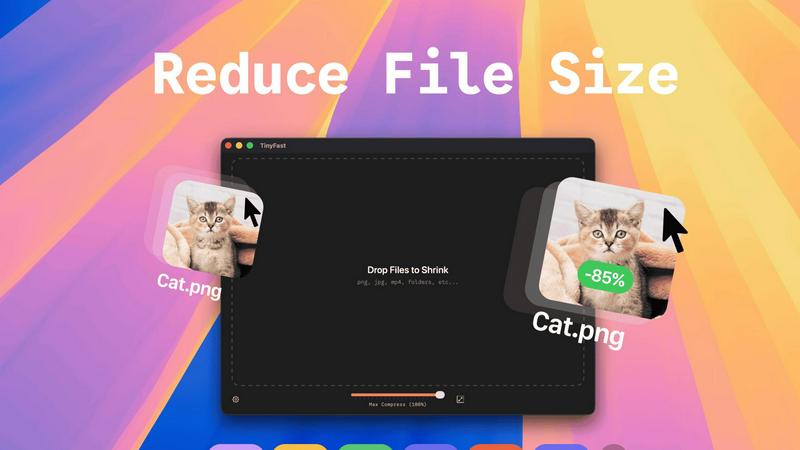
Shrink your files on Mac in seconds with TinyFast—just drag, drop, and keep your data private and safe!.
Last updated: February 28, 2026
Visual Comparison
RemoveTexts

TinyFast
Feature Comparison
RemoveTexts
Paint to Remove
With the Paint to Remove feature, you have total control over what gets erased. Simply brush over the specific text areas you want to disappear, and our AI does the rest. It's like having a magic paintbrush that only targets unwanted text, leaving everything else intact!
Auto Remove All
If you're feeling lazy (and who isn't?), just hit the Auto Remove All button. The AI automatically detects every text element in your image and removes it with a single click. It's fast, efficient, and saves you from the hassle of manual selections.
Edit & Replace Text
Need to change some text in your image but want to keep the vibe? The Edit & Replace Text feature lets you swap out existing text while perfectly matching the original style. It's like giving your image a fresh new look without losing its essence.
Remove Objects
Want to get rid of distractions like logos, people, or other visual clutter? The Remove Objects feature lets you erase unwanted elements with ease. Just paint over the area, and watch as it disappears, making your image cleaner and more professional.
TinyFast
Batch & Drag-Drop Shrink
TinyFast’s batch and drag-drop feature lets you drop entire folders in for optimization, saving you tons of time. Say goodbye to the tedious process of compressing files one at a time; just drag and drop, and you’re good to go. The app handles everything in the blink of an eye, delivering optimized files in seconds.
Blazing-Fast Compression
Forget about waiting for uploads and downloads. With TinyFast, you get blazing-fast compression thanks to optimized native engines built specifically for speed. Whether it’s images, videos, or documents, the app compresses your files almost instantly, letting you keep your workflow chugging along without interruptions.
Resize Resolution
Need to resize your images or videos? TinyFast’s automatic resize resolution feature has got you covered. Just set your desired dimensions and let the app do the heavy lifting for you. It’s perfect for ensuring your files are not only smaller but also perfectly sized for your specific needs.
100% Local & Private
Privacy is key, and TinyFast takes it seriously. Your files never leave your Mac, so there's no risk of them being stored on shady servers or getting accessed by prying eyes. This means you can compress sensitive assets without a worry, making it a great choice for professionals who need to maintain confidentiality.
Use Cases
RemoveTexts
Cleaning Screenshots
Got a messy screenshot filled with unnecessary text? RemoveTexts is perfect for cleaning it up. Just upload, paint over the text, and bam! You have a sleek, professional-looking image ready to share or present.
E-Commerce Product Photos
E-commerce sellers can benefit big time from RemoveTexts. Remove distracting watermarks or text from product images to make them more appealing to potential buyers, boosting your sales without breaking a sweat.
Educational Materials
Teachers and educators can use RemoveTexts to create clean visuals for presentations or handouts. Whether it's removing subtitles from educational videos or cleaning up images, this tool makes it easy to present information without distractions.
Social Media Creators
For social media marketers and influencers, RemoveTexts is a game-changer. Easily remove unwanted text from images before posting, ensuring your visuals are eye-catching and professional. Stand out in a crowded feed with polished content.
TinyFast
Streamlining Design Projects
If you’re a designer, TinyFast can be a game-changer for your workflow. Compress all those high-res images you need for presentations or online portfolios without sacrificing quality. It’s a simple drag-and-drop process, making it easy to optimize your files for web use or client delivery.
Speeding Up Video Editing
Video editors can save precious time by compressing large video files before uploading them to editing software or sharing with clients. With TinyFast, you can quickly optimize those hefty MP4s and MOVs, speeding up your workflow and freeing up space on your hard drive.
Simplifying Document Management
For anyone dealing with heavy PDF or DOCX files, TinyFast simplifies document management. Reduce file sizes for easier email sharing and faster uploads, ensuring you can send those important documents without hitting size limits or compromising on quality.
Enhancing Code Efficiency
Developers can also benefit from using TinyFast to compress files like JS, CSS, and JSON. Keeping code files lean not only helps with project organization but also improves loading times and overall performance in web applications.
Overview
About RemoveTexts
RemoveTexts is your go-to AI-powered image editing tool that makes removing unwanted text from images a total breeze. Forget fumbling around with Photoshop or wasting time on manual edits; with RemoveTexts, you can simply upload your image and let the magic happen in seconds. Whether you're dealing with pesky watermarks on product photos, annoying meme text, or even those distracting date stamps, this tool has got your back. It's perfect for creators, marketers, and anyone who needs clean visuals without the hassle. The best part? You don't need any design skills to get pro-level results. With advanced AI technologies, RemoveTexts not only obliterates text but also reconstructs the background seamlessly, making it look like the text was never there. Join the community of over 100,000 users who trust RemoveTexts to keep their images looking sharp and professional.
About TinyFast
Alright, let’s get real. TinyFast is the Mac app you didn’t know you needed until you dive into the world of file compression. Think of it as your personal file-shrinking wizard, right there on your desktop, ready to tackle those hefty files that are just too big to handle. Whether you’ve got a chunky PNG from your latest design project, a massive MP4 from your video editing adventures, or a PDF that’s ballooned to an unacceptable size, TinyFast has your back. Just drag your files in and watch the magic happen—no uploads to sketchy servers, no waiting around for results, and absolutely no one peeking at your confidential work. Designed with a focus on speed and privacy, this app is a must-have for developers, designers, and creators who crave efficiency and security. If you’re all about keeping your files local while zipping them down to size, TinyFast is the ultimate upgrade your workflow has been begging for.
Frequently Asked Questions
RemoveTexts FAQ
How does RemoveTexts work?
RemoveTexts uses deep learning inpainting technology to analyze the surrounding pixels of the text you want to remove. The AI intelligently reconstructs the background, making it look like the text was never there.
What file formats does RemoveTexts support?
You can upload images in JPG, PNG, or WebP formats. Just make sure your image is under 10MB, and you're good to go!
Is there a limit to how many images I can process?
There is no specific limit to the number of images you can process with RemoveTexts. However, keep in mind that the AI might need a moment to work its magic on larger batches.
Can I use RemoveTexts for commercial purposes?
Absolutely! Many e-commerce sellers and marketers use RemoveTexts to create professional images for their products and campaigns. Just be sure to check any specific usage rights for your images.
TinyFast FAQ
How does TinyFast ensure my files stay private?
TinyFast works entirely offline on your Mac, meaning your files never leave your device. There are no uploads to external servers, ensuring that your sensitive information remains confidential and secure.
Can I compress multiple files at once?
Absolutely! With TinyFast’s batch and drag-drop feature, you can drop entire folders of files in for compression. This saves you a ton of time, allowing you to optimize multiple files in just a few seconds.
What file types does TinyFast support?
TinyFast supports a wide array of file types, including images (PNG, JPG, GIF, and more), videos (MP4, MOV), documents (PDF, DOCX), code files (JS, CSS), and audio files (MP3). It’s a versatile tool for all your compression needs.
Is TinyFast easy to use for non-techies?
Yes! TinyFast is designed with simplicity in mind. The drag-and-drop interface makes it incredibly user-friendly, so even if you’re not tech-savvy, you can easily compress your files in no time.
Alternatives
RemoveTexts Alternatives
RemoveTexts is an AI-powered tool that specializes in removing unwanted text from images, like a boss. Whether you're looking to ditch those pesky watermarks, clean up your screenshots, or just want to make that meme pop without the clutter, RemoveTexts has got your back. It's all about speed and ease; no Photoshop skills required, just upload your image and let the AI work its magic. However, not everyone's vibe fits with RemoveTexts. Users often seek alternatives for reasons like pricing, specific features, or platform compatibility. When hunting for an alternative, consider what you really need—whether it's advanced editing options, support for different languages, or even if you want a mobile-friendly app. Finding the right tool can make all the difference in achieving those killer visuals.
TinyFast Alternatives
TinyFast is that slick Mac app dedicated to shrinking your files without the hassle of online uploads or complicated settings. It’s all about keeping your workflow smooth and your files secure, making it super appealing for designers, developers, and anyone who deals with hefty files regularly. However, folks often start hunting for alternatives when they hit roadblocks like pricing, specific feature needs, or compatibility with their preferred platforms. Sometimes, the search is simply about finding tools that fit better into their existing setup or offer unique features that suit their workflow. When you’re on the lookout for an alternative, consider what features matter most to you. Do you need a more extensive range of file formats? Or maybe a more tailored user experience? Speed is crucial, but so is privacy; ensure that your alternative keeps your files safely on your device. Ultimately, weigh the pros and cons of each option against your specific needs to find the right match for your file-compressing journey.